

دعوة دعم WebGee إلى حسابك في Cloudflare
امنح فريق دعم WebGee وصولًا مؤقتًا إلى حسابك في Cloudflare ليتمكّن من فحص مشكلات DNS أو SSL أو جدار الحماية مباشرة.
امنح دعم WebGee وصولًا إلى حسابك في Cloudflare لنتمكّن من الفحص مباشرة بدل أن نطلب منك نقل الإعدادات ذهابًا وإيابًا. ينطبق على أي نطاق تديره في Cloudflare.
وتبقى أنت المتحكّم، ويمكنك سحب الوصول في أي وقت.

متى يفيد هذا
تقف Cloudflare أمام موقعك، فعدد مفاجئ من المشكلات التي تبدو أعطال استضافة هي في الحقيقة إعدادات هناك:
- سجلات DNS تشير إلى المكان الخطأ
- وضع SSL/TLS يسبّب حلقات إعادة توجيه — راجع وضع موقعك خلف Cloudflare
- قواعد جدار الحماية أو حدود المعدّل تحجب زوارًا شرعيين
- قواعد الصفحات تعطّل تسجيل الدخول أو تخزّن الشيء الخطأ — راجع حلقة «please wait while your request is being verified»
- سجلات MX تمنع تسليم البريد
ادعُنا
-
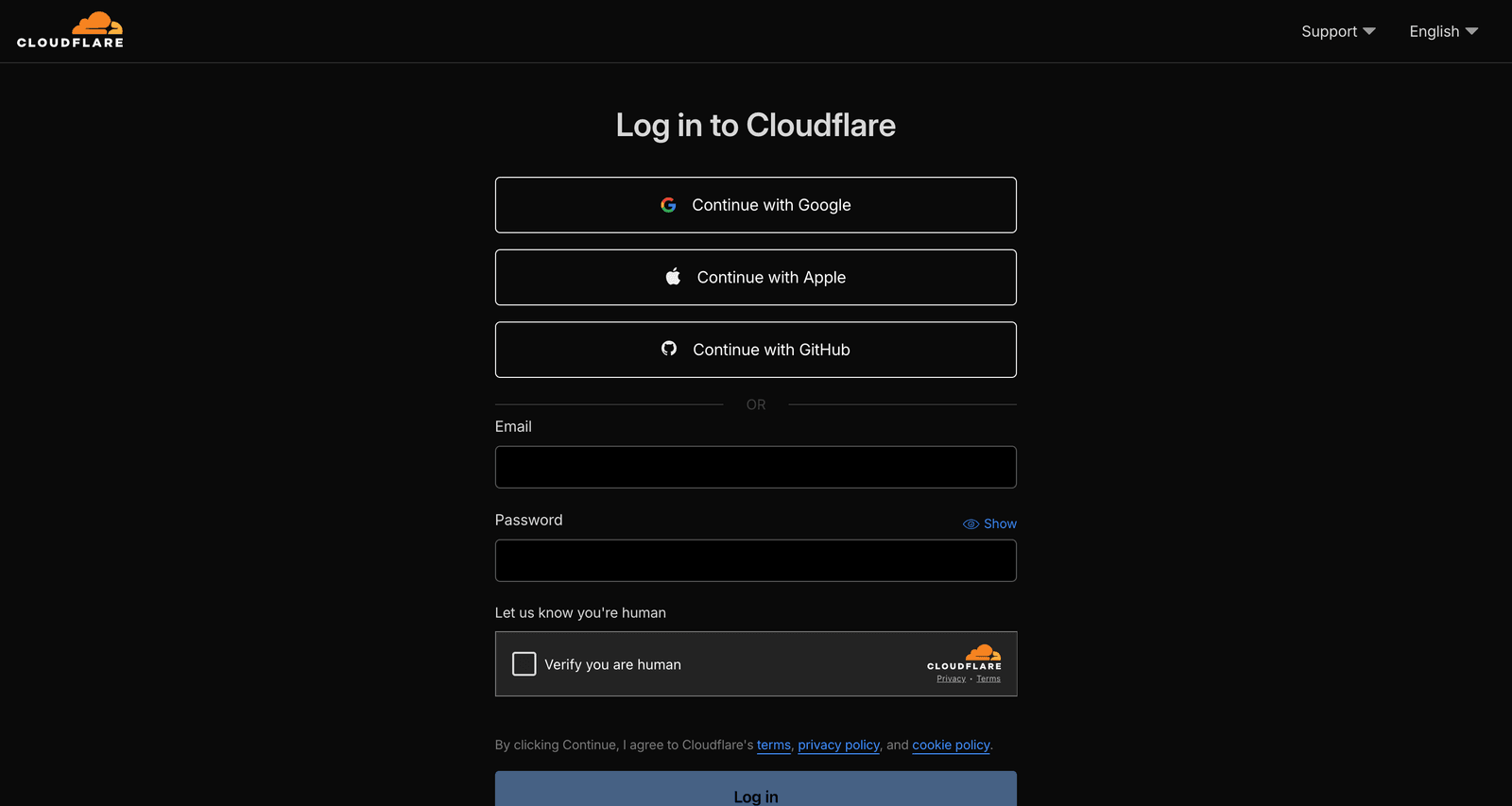
سجّل الدخول في dash.cloudflare.com.
-
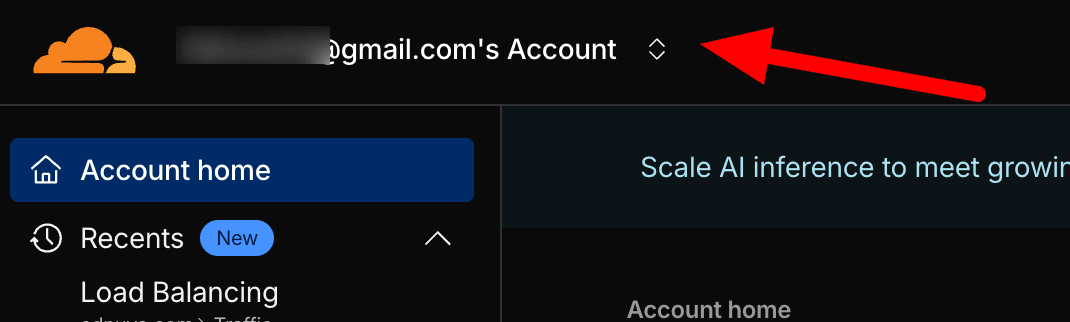
اختر الحساب الصحيح من القائمة المنسدلة في الأعلى، إن كان لديك أكثر من واحد.
-
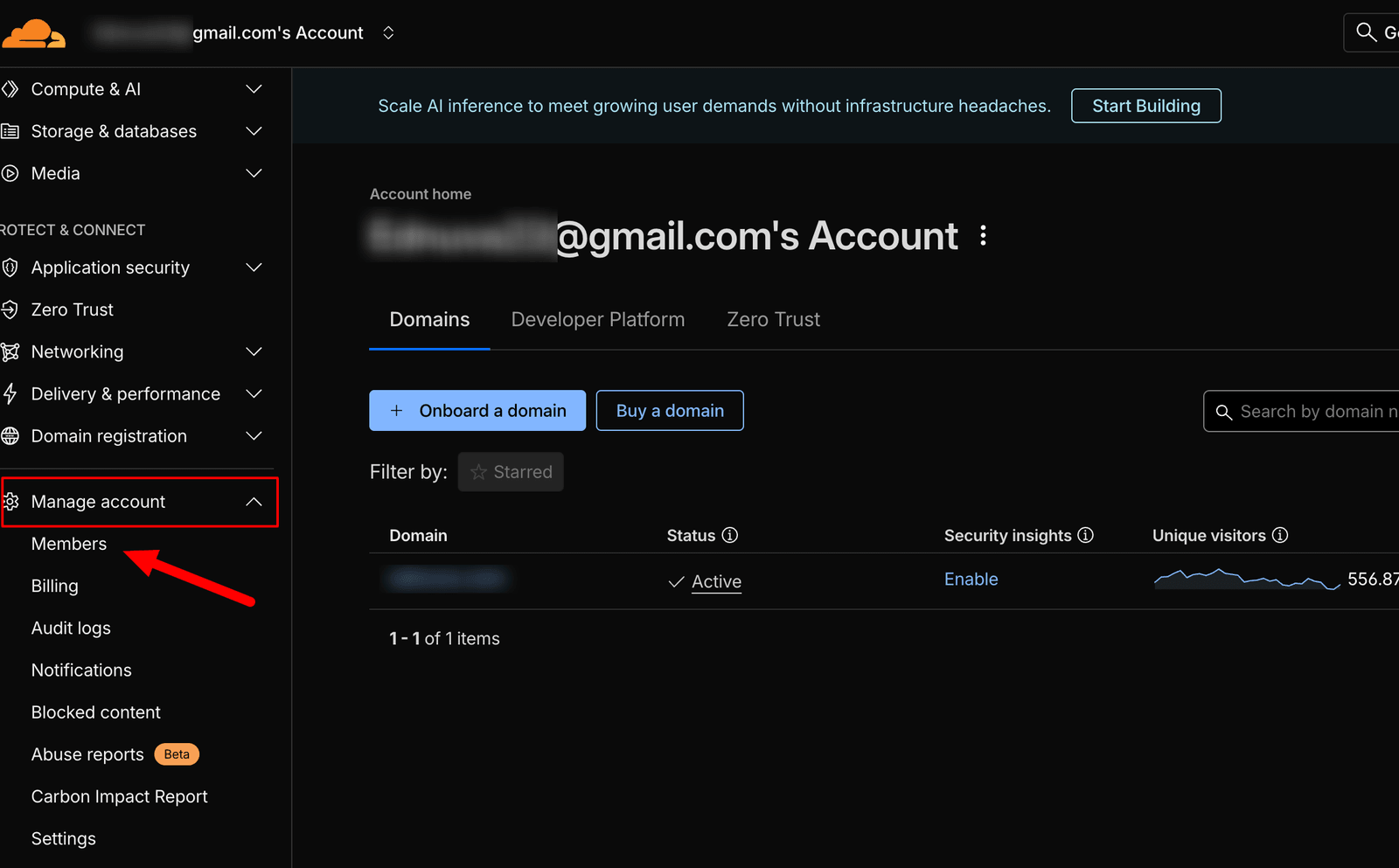
انتقل إلى Manage Account ← Members.
-
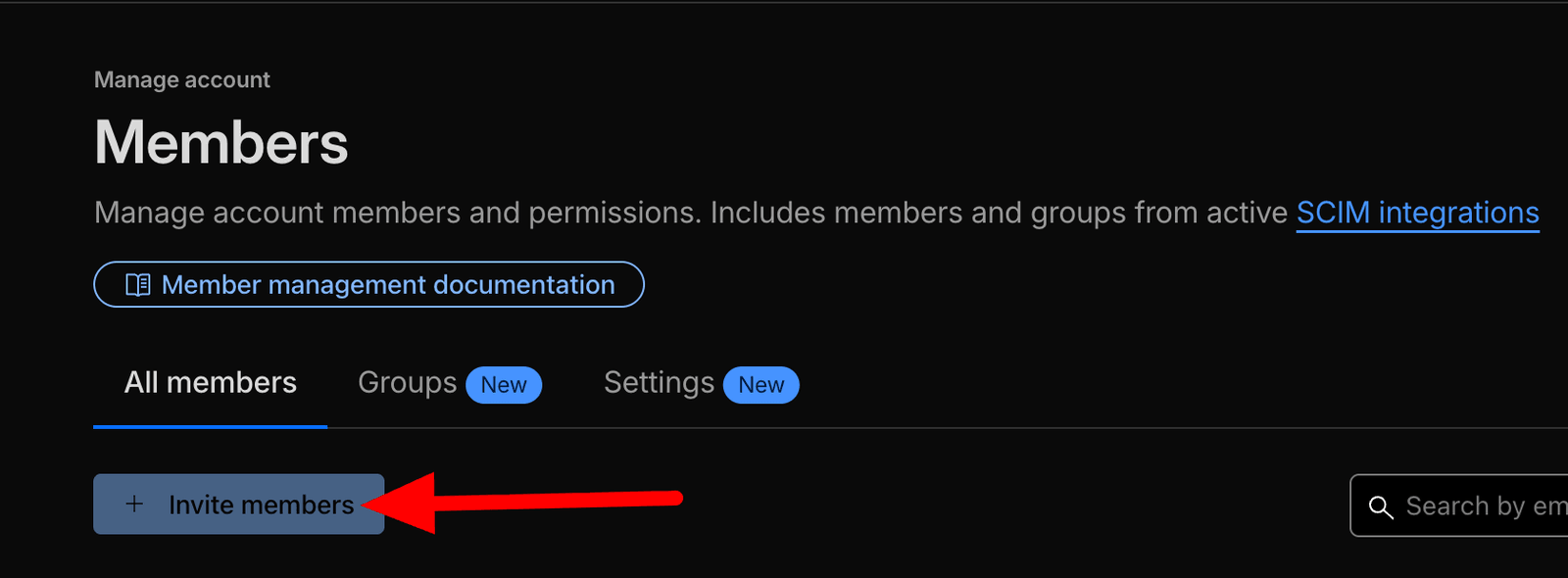
اختر Invite.
-
أدخل
support@webgee.com. -
اسند دور Administrator.
-
أرسل الدعوة.
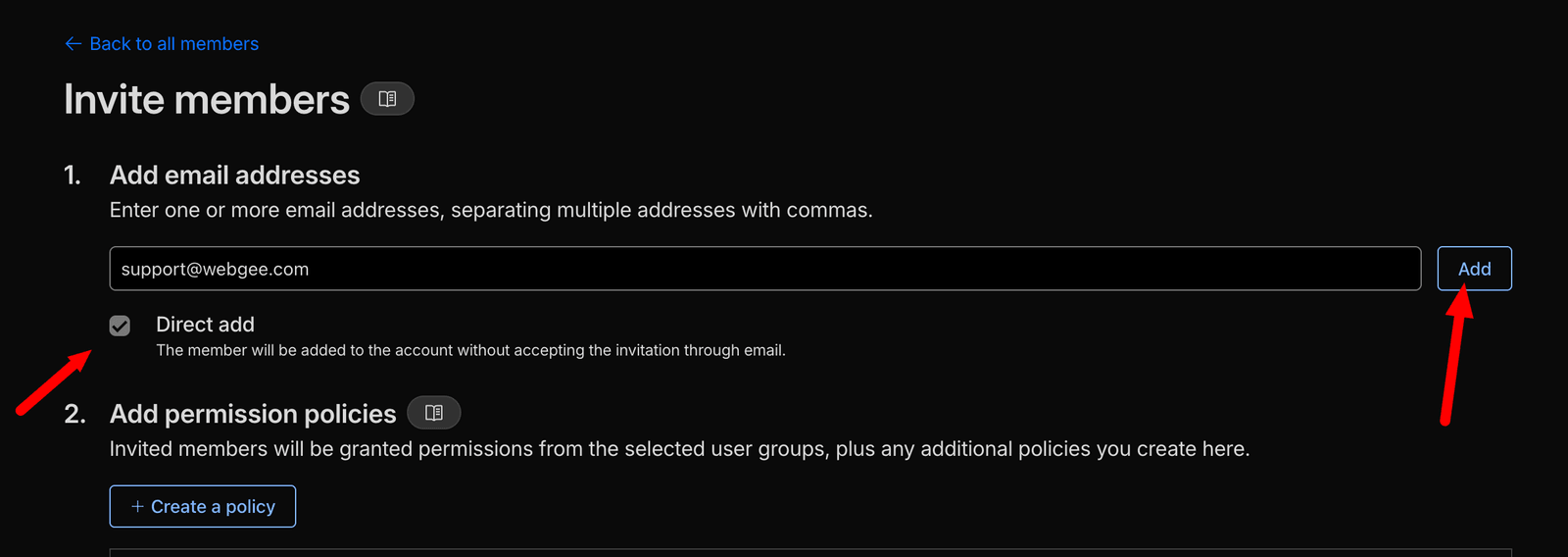
ثم اذكر ذلك في تذكرتك، لنعرف أن نقبلها.
دور Administrator لازم لأن إعدادات DNS وSSL وجدار الحماية ليست كلها متاحة من دور أقل — فالدور للقراءة فقط يعني أننا نستطيع وصف المشكلة لا إصلاحها. وإن فضّلت تضييق النطاق فقل ذلك في التذكرة وسنخبرك بالحد الأدنى لمشكلتك تحديدًا.
اسحب الوصول بعد ذلك
ضمن Members، احذف support@webgee.com بعد حل تذكرتك.
افعل ذلك بدل تركه قائمًا. فمنح دائم غير مستخدَم على DNS الخاص بك يستحق الإزالة من حيث المبدأ، وهو نقرة واحدة.