

Migrate WordPress with Installatron
Import a WordPress site into your hosting account with Installatron, either from elsewhere on the same account or over FTP from another provider.
Installatron imports an existing WordPress installation — from the same account, or from another host over FTP. Applies to shared and reseller hosting on cPanel.
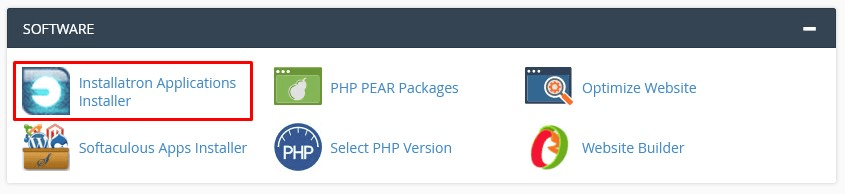
Open Installatron Applications Installer from cPanel's Software section.
- Search for
WordPressand select it. - Open the three-line menu and choose Import existing install.
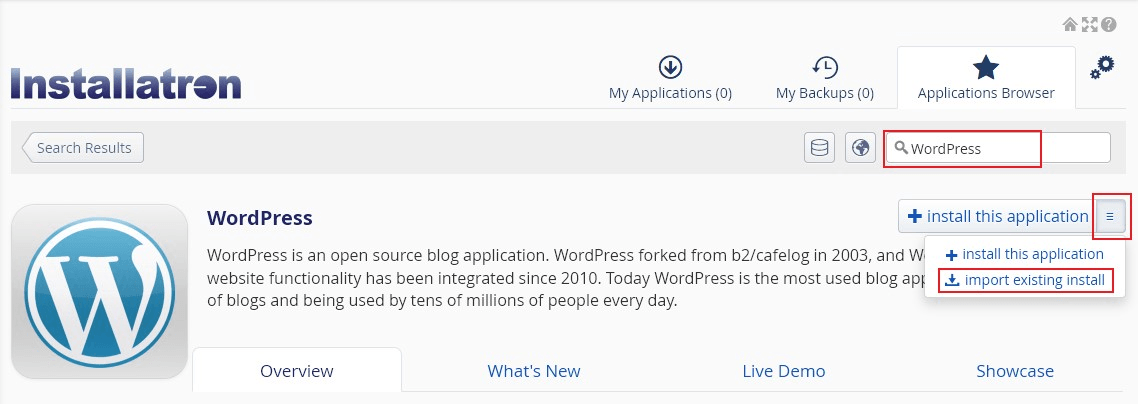
The same steps apply to every application Installatron supports, not just WordPress.
Import from another provider
Select Continue under the From this account column on the Import screen.
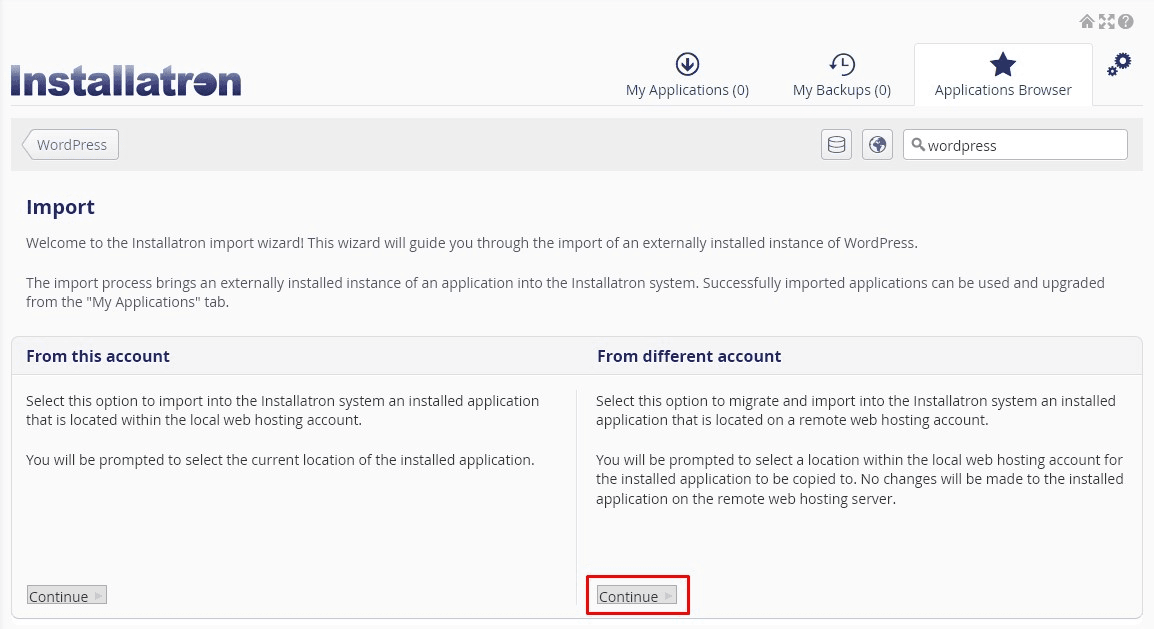
The form has two halves: where the site is now, and where it should go.
Source
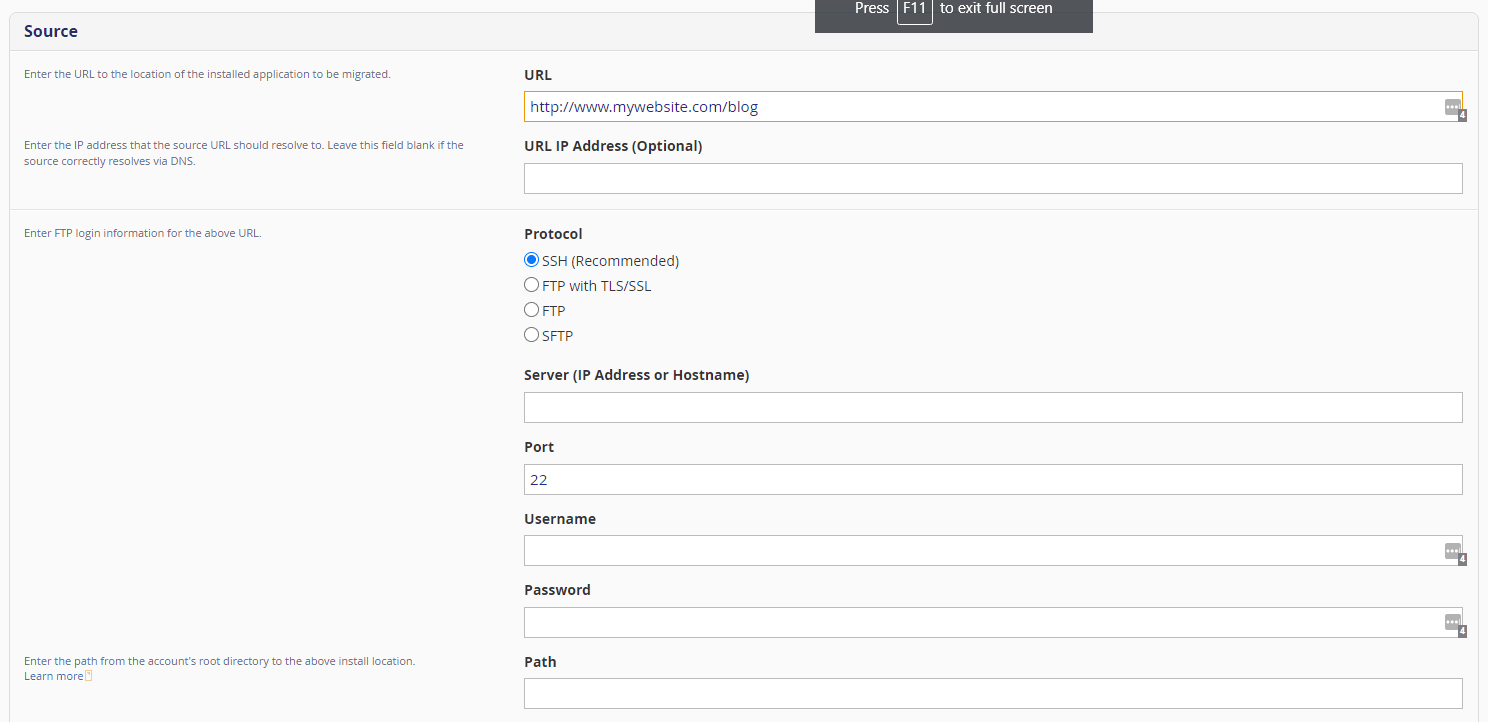
| Field | What to enter |
|---|---|
| URL | The address of the site being migrated |
| URL IP Address | Optional. The IP the URL should resolve to — leave blank unless DNS already points here |
| Protocol | Whatever the remote server supports; prefer SFTP or FTPS over plain FTP |
| Server | Hostname or IP of the remote server |
| Port | Set automatically by the protocol; change only for a non-standard port |
| Username | The full FTP username |
| Password | The FTP password |
| Path | From where FTP drops you, to the WordPress directory |
Incorrect FTP details are the most common cause of a failed import, and the error does not always say so. Connect with an FTP client first and confirm the credentials and path work before starting.
URL IP Address is worth using when you are migrating before changing DNS. Set it to the old server's IP so Installatron reaches the source rather than whatever the domain currently resolves to.
The Path is relative to your FTP login directory, not the server root. If
FTP drops you straight into the account's home directory, the path is usually
public_html.
Destination
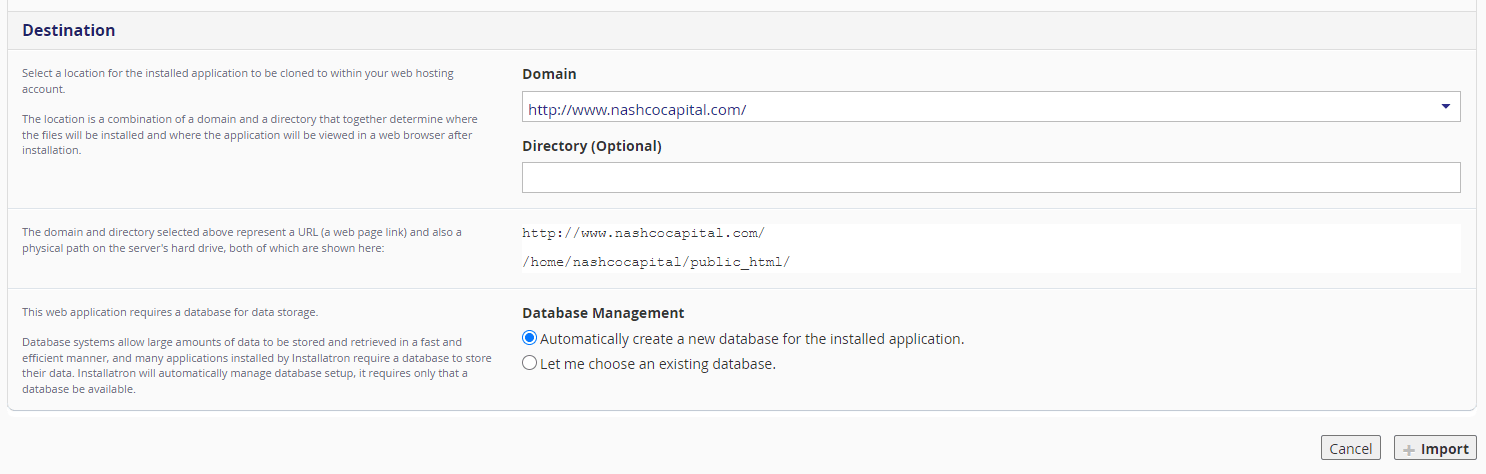
| Field | What to enter |
|---|---|
| Domain | Which of your domains serves the site once imported |
| Directory | Leave blank to serve from the domain root |
| Database Management | Let Installatron create a database, or select an existing one |
Leave Directory blank unless you specifically want the site under a subdirectory. Let Installatron create the database — reusing an existing one risks overwriting another site's tables.
Select Import.
After the import
The site appears in My Applications.
- Load it and confirm it serves from the new domain, not the old one.
- Check images load. Broken images mean URLs in the database still point at the source.
- Log in to
wp-admin; credentials come across with the site. - Only change DNS once the site works on the new server.