

Restore from a backup
Restore files, a database or a whole cPanel account from JetBackup, choosing a backup date and restoring only what you need.
Restore your account, or part of it, from an automatic backup. Applies to shared and reseller hosting.
WebGee takes incremental backups of every account — daily, or hourly on some plans — and JetBackup 5 restores from any of them.
A restore overwrites what is there now. If you are unsure whether the backup is the right one, take a snapshot of the current state first so you can get back to it — see Take a snapshot backup.
Start from the type you need
The JetBackup 5 home page has a shortcut for each kind of restore, which is quicker than working through the full list.
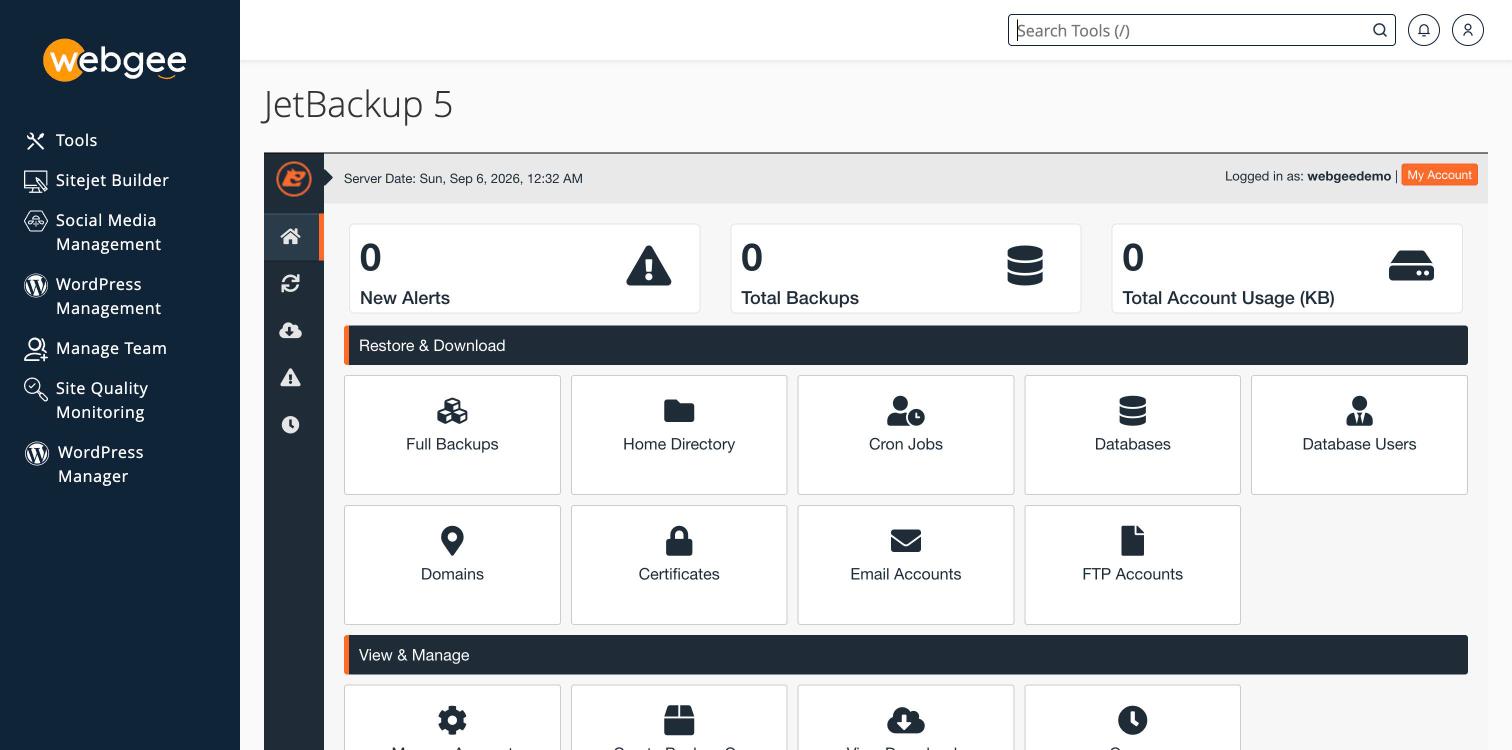
| Tile | Restores |
|---|---|
| Full Backups | The whole account |
| Home Directory | Files, whole or individual |
| Databases / Database Users | One database, or its users |
| Email Accounts | A single mailbox |
| Domains | Domain configuration |
| Certificates | Installed SSL certificates |
| Cron Jobs | Scheduled tasks |
| FTP Accounts | FTP logins |
Pick the narrowest one that covers your problem. The counters at the top — Total Backups and Total Account Usage — tell you whether backups exist at all before you go looking.
Restore
-
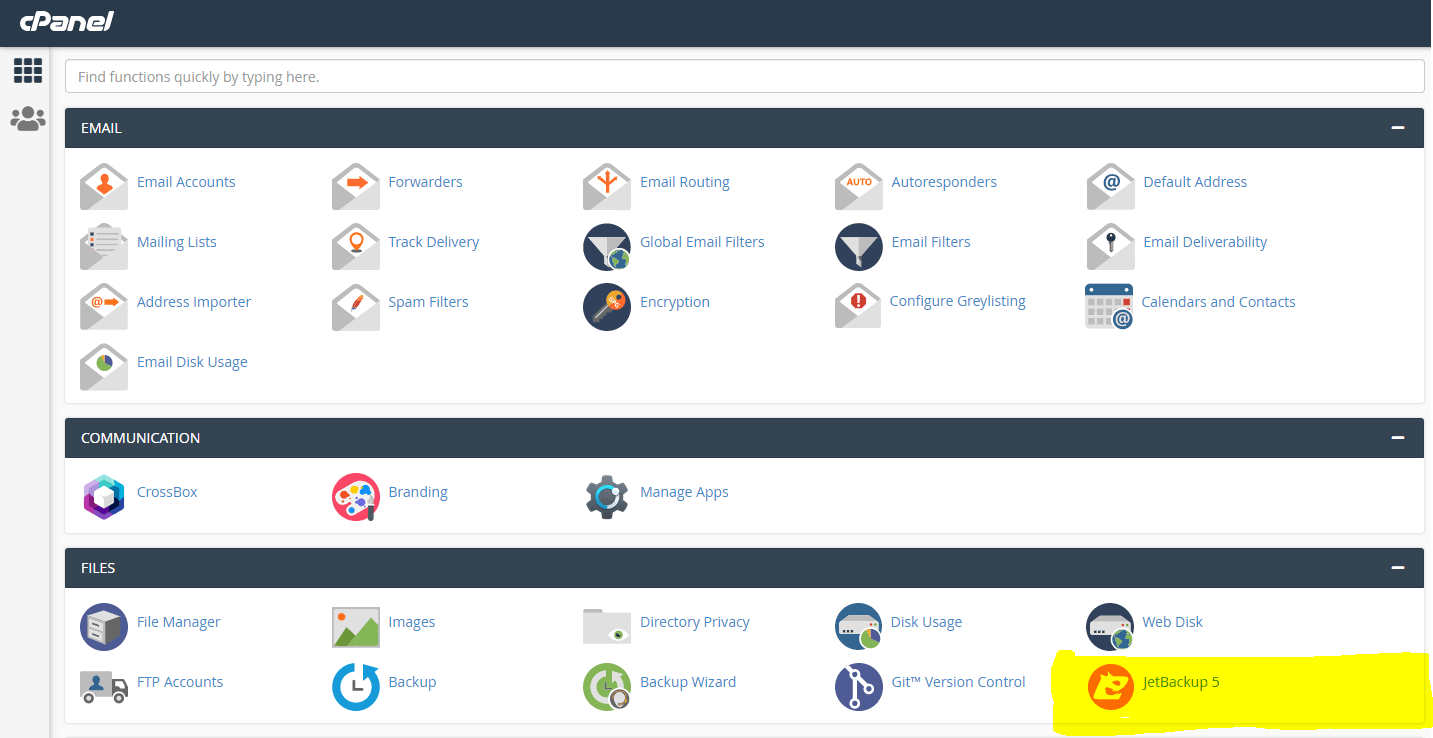
In cPanel, open JetBackup 5.
-
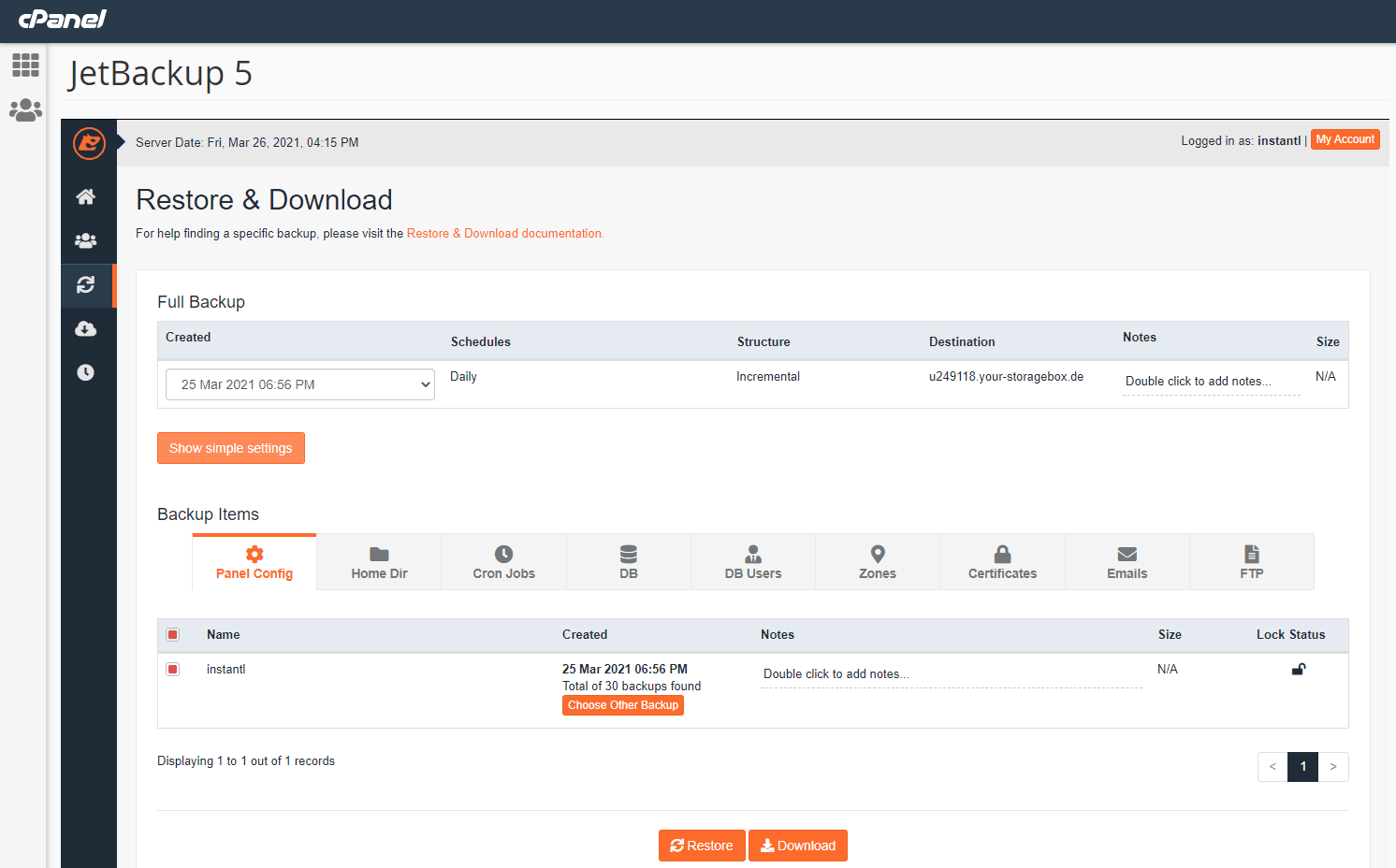
Select Restore & Download in the left-hand menu, or a tile above.
-
Choose the backup date you want from the list.
-
Either:
- Select Restore for a full restore — files, databases, email accounts and cPanel settings; or
- Select Show Advanced Settings to choose exactly what to restore.
Restore only part of it
Show Advanced Settings lets you pick individual items — a single database, a single email account, or just the home directory. This is almost always the better choice:
- It is much faster.
- It does not overwrite unrelated things you have changed since.
- A full restore rolls back email accounts and cPanel settings too, which is rarely what you want when you are fixing one broken site.
To restore a specific file or folder rather than everything, see Restore a home directory or specific files.
Check it worked
Restores are queued, not instant. Watch the Queue screen in JetBackup until the job reports as complete, then check the site or data you restored.
A restored WordPress site may still serve cached pages — clear your cache plugin, or hard-refresh the page.
If the backup you need is not listed
- It is older than the retention period. Retention depends on your plan.
- The account was created after that date.
- JetBackup shows a 500 error. See JetBackup UI showing 500 error.
Some paths are excluded from backups by design — see What is excluded from the daily backups?.
Related
Why Softaculous backups are disabled
Softaculous backup is turned off on WebGee hosting because it writes full copies into your own disk quota. Use JetBackup instead.
JetBackup shows a 500 error during a restore
A 500 error in JetBackup while a full account restore is running is expected. Wait for it to finish, then sign out and back in.