

إعادة ضبط منطقة DNS إلى الافتراضي
أعِد سجلات DNS لنطاق إلى افتراضيات cPanel حين يترك نقل أو تعديل يدوي المنطقة معطّلة.
أعِد منطقة DNS لنطاق إلى الافتراضيات التي ينشئها cPanel لنطاق جديد. ينطبق على الاستضافة المشتركة والموزِّعة.
وهو مفيد حين يترك نقل أو تعديل يدوي المنطقة في حالة إعادة بنائها أسهل من فكّها.
هذا يحذف كل سجل مخصّص في المنطقة. فسجلات SPF وDKIM وDMARC، وسجلات التحقّق من النطاق، والنطاقات الفرعية المشيرة إلى أماكن أخرى، وأي سجلات MX لبريد خارجي — كلها تُزال وتُستبدل بافتراضيات cPanel.
دوّن ما تحتاج إعادة إنشائه قبل أن تفعل هذا.
سجّل ما لديك أولًا
dig +short ANY example.com
dig +short TXT example.com
dig +short MX example.com
أو انسخ قائمة السجلات من Zone Editor. وانتبه خصوصًا إلى:
- سجلات MX، إن كان البريد يُعالَج في غير هذا المكان — فإعادة ضبطها توقف تسليم البريد فورًا
- سجلات TXT الخاصة بـ SPF وDKIM وDMARC وأي تحقّق من خدمة
- سجلات CNAME المشيرة إلى خدمات خارجية
أعِد الضبط
-
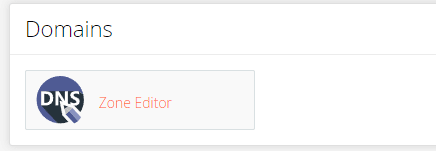
في cPanel، افتح Zone Editor ضمن Domains.
-
اختر Manage بجوار النطاق.

-
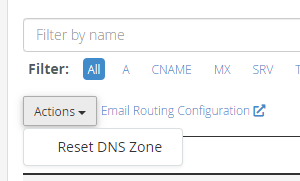
اختر Actions، ثم Reset DNS Zone.
-
أكّد.
بعد ذلك
تحوي المنطقة الآن افتراضيات cPanel: سجلات A للنطاق ولـ www، وMX محليًا،
وسجل SPF أساسيًا.
أعد إنشاء ما دوّنته. وخصوصًا:
- البريد الخارجي — أعِد سجلات MX وحدّث SPF. راجع استخدام Google Workspace لبريدك.
- توثيق البريد — SPF وDMARC. راجع سجلات SPF ونشر سجل DMARC.
- سجلات التحقّق الخاصة بجوجل أو مايكروسوفت أو ما شابه.
إن كان النطاق يستخدم خوادم أسماء خارجية
فإعادة ضبط المنطقة هنا لا تفعل شيئًا مرئيًا. فالنطاق المفوَّض إلى Cloudflare أو إلى DNS مُسجِّل يتجاهل هذه المنطقة تمامًا — أجرِ التغييرات هناك بدلًا من ذلك. افحص أولًا بـ معرفة خوادم الأسماء التي يستخدمها نطاق.