

إنشاء قواعد بيانات MySQL وإدارتها
أنشئ قاعدة بيانات ومستخدمًا في cPanel، وامنح الصلاحيات، واعثر على بيانات الاتصال التي يحتاجها تطبيقك.
أنشئ قاعدة بيانات MySQL ومستخدمًا يستطيع الوصول إليها. ينطبق على الاستضافة المشتركة والموزِّعة والمميّزة.
تحتاج معظم التطبيقات ثلاثة أشياء: قاعدة بيانات، ومستخدمًا، وصلاحيات ممنوحة لذلك المستخدم عليها. وإنشاء الأولين ونسيان الثالث هو السبب المعتاد لفشل التثبيت بخطأ اتصال.
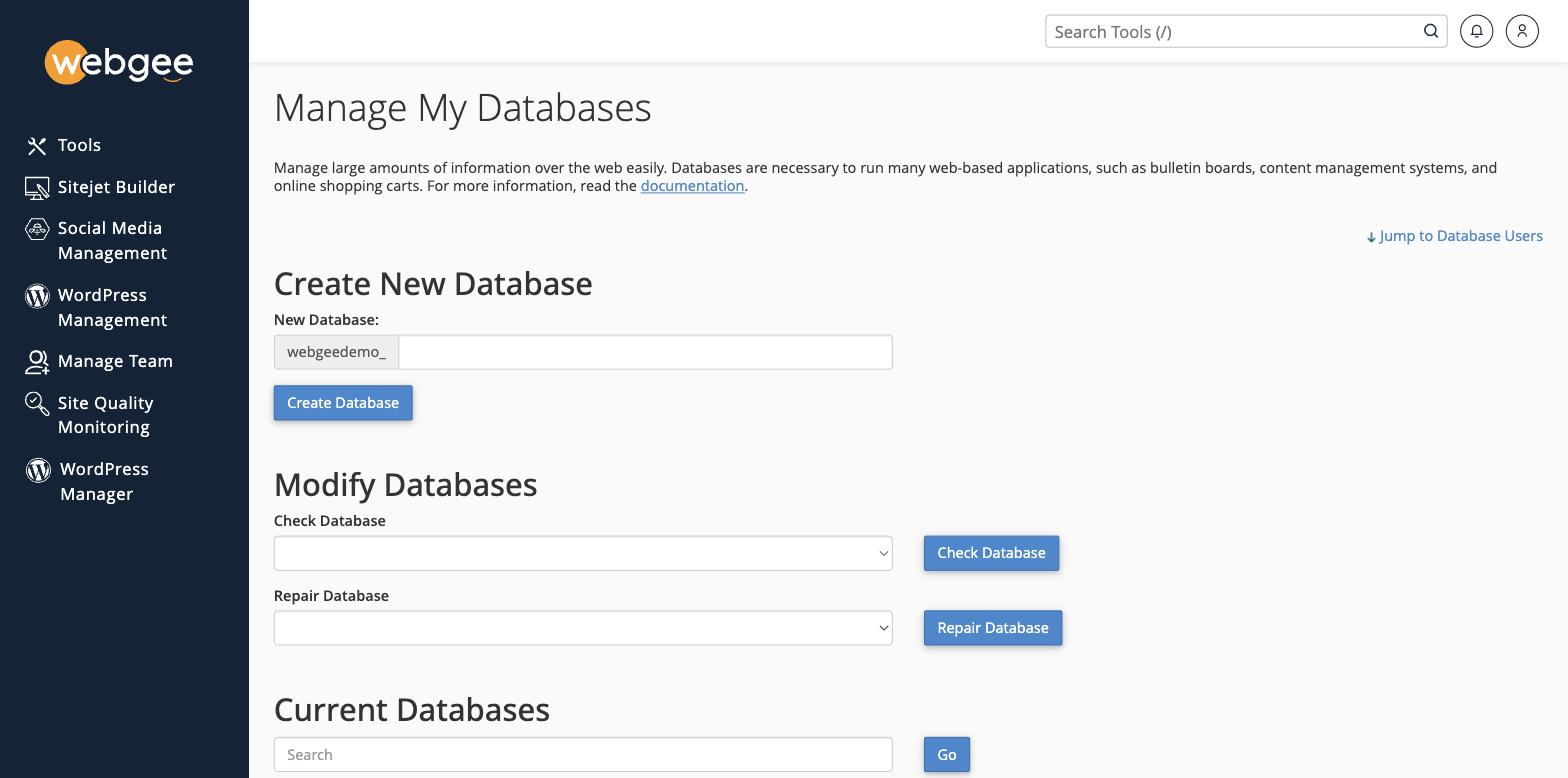
تُسبَق أسماء قواعد البيانات والمستخدمين باسم مستخدم cPanel لديك — فإدخال shop
ينشئ webgeedemo_shop. وتحتاج التطبيقات الاسم الكامل مع البادئة، واستخدام
الاسم بدونها سبب شائع لفشل الاتصال.
إنشاء قاعدة بيانات ومستخدم
ينفّذ المعالج الخطوات الثلاث بالترتيب، ولهذا يستحق الاستخدام:
- في cPanel، افتح MySQL Database Wizard ضمن Databases.
- أدخل اسم قاعدة البيانات، ثم Next Step.
- أدخل اسم مستخدم وكلمة مرور — استخدم Password Generator — ثم Create User.
- امنح All Privileges، ثم Next Step.
احتفظ باسم قاعدة البيانات واسم المستخدم وكلمة المرور. فأنت تحتاج الثلاثة للاتصال.
يضيف cPanel اسم مستخدمك بادئةً للاسمين معًا. فقاعدة بيانات تسمّيها wordpress
تصبح cpaneluser_wordpress، وهذا الاسم الكامل هو ما يجب أن يستخدمه تطبيقك.
أو افعلها يدويًا
ضمن MySQL Databases يمكنك إنشاء كل جزء على حدة، وهو ما تريده عند إضافة مستخدم ثانٍ إلى قاعدة بيانات قائمة:
- Create New Database — قاعدة البيانات
- Add New User — المستخدم
- Add User To Database — المنح، وهي الخطوة التي يغفلها الناس
إعدادات الاتصال
| الإعداد | القيمة |
|---|---|
| المضيف | localhost |
| قاعدة البيانات | cpaneluser_dbname |
| اسم المستخدم | cpaneluser_dbuser |
| كلمة المرور | كما ضبطتها |
| المنفذ | 3306 |
localhost هو الصحيح لأن قاعدة البيانات تعمل على الخادم نفسه الذي يعمل عليه
موقعك. استخدمه بدل نطاقك — فهو يتصل عبر مقبس محلي، وهو أسرع ويتجنّب جدار
الحماية تمامًا.
وللاتصال من خارج الخادم، راجع السماح باتصالات MySQL البعيدة.
تغيير كلمة مرور
ضمن MySQL Databases → Current Users، اختر Change Password.
وتذكّر تحديثها في إعدادات تطبيقك في الوقت نفسه — wp-config.php في ووردبريس.
فتغييرها في cPanel وحده يوقف الموقع.
حذف قاعدة بيانات
الحذف فوري ونهائي. خذ نسخة احتياطية أولًا — راجع تنزيل نسخة احتياطية من حسابك.
تأكّد أنها تعمل
mysql -u cpaneluser_dbuser -p cpaneluser_dbname -e "SELECT 1;"عودة 1 تعني أن المستخدم وكلمة المرور والمنح كلها صحيحة. أما Access denied
فتعني غالبًا أن المنح ناقص، لا أن كلمة المرور خاطئة.